Notice. New forum software under development. It's going to miss a few functions and look a bit ugly for a while, but I'm working on it full time now as the old forum was too unstable. Couple days, all good. If you notice any issues, please contact me.
Bryan1 Guru Joined: 22/02/2006 Location: AustraliaPosts: 2264
Posted: 03:40am 13 Feb 2026
Copy link to clipboard
Print this post
G'Day Guy's, Well as per my inverter build woes went down to town and bought the Duinotech USBasp programmer and the 6 pin adapter.
Now trying on win10 I did I had to download the zadig driver so did a reboot to ensure and you guessed it no programmer found. Tried on 3 new nano's too but everytime no go.
So decided to try MX.25 and got the same no programmer found, now on research it was said to use USBasp on linux one has to be signed in as root. So went in my permission and added root then did a reboot with still no change.
Now I left the old bootloader option on both systems and changed the programmer to USBasp and trying to burn a bootloader gives the error
error: cannot set sck period; please check for USBasp firmware update expected signature for ATmega328P is 1E 95 0F
could it actually be this programmer I bought doesn't have the firmware on or something?
KeepIS Guru Joined: 13/10/2014 Location: AustraliaPosts: 2265
Posted: 04:31am 13 Feb 2026
Copy link to clipboard
Print this post
Ignore this, it is not an error, it always appears.
If ATmega328 part is listed (as above) it will be fine, there are a number of reasons for this and if someone wants to give a few go for it.
Most people set the override flag and force the Programming to continue.
I wrote a full description of this and posted a few times.
If you click on the Link in my Sig and download the Full Download.zip, you will find a "Nano Hex and Menu.PDF" along with the other files, it has a lot of info.
Note: None of the files except for the PDF can be used in Linux, so delete the rest.
If you have trouble using the IDE, I can post a simple Linux script for you to edit the filename and path in order to program the Nano. . Edited 2026-02-13 14:35 by KeepISNANO:Inverter V 8.4ks - Linux AvrDude GUI script V4.1
JohnS Guru Joined: 18/11/2011 Location: United KingdomPosts: 4380
Posted: 08:54am 13 Feb 2026
Copy link to clipboard
Print this post
On Linux the only reason to try root is to see if it works when being a normal user didn't. (It's not the best thing to try but it's quick and easy.)
If being root does work then you've a permissions problem i.e. the user hasn't got the right access permission for the device file.
The device file is typically /dev/ttyACM0 or /dev/ttyUSB0 or the like. Look at the owner & group of the relevant device file.
Typically the user needs to be added to the dialout group - whatever the device file shows.
The reason it "works" as root is that bypasses all the security checks and lets root do anything, no matter how bad it may be. Do not be root except when necessary.
Instead of trying it as root you can just start by checking the permissions mentioned.
John
KeepIS Guru Joined: 13/10/2014 Location: AustraliaPosts: 2265
Posted: 09:32am 13 Feb 2026
Copy link to clipboard
Print this post
Just to add to info that Johns gave you, I already had it typed
Assign root access to the device in crude and usually does not hold after a restart.
All you need to do is use MX User Manager, select group Membership tab, and tick dialout, this makes you, the user, a member of the dialout group.
There is usually one extra step needed in almost every Linux distro to correctly assign the USBasp USB device to the dialout group. Then you don't have to mess with root access not holding. I'll post the info if you need this, I don't want to make this sound confusing here.
As stated in last post, that is not an error, however if you get that message it means that the USBasp programmer is detected and can be accessed.
Unfortunately the Arduino IDE config won't allow you to program the Nano if the Chip ID does not "EXACTLY" match the selected Processor "ATmega328P" in your case.
I can bundle a zip for you that has Avrdude and it's config file, along with a simple script to allow you to program the Nano that I mentioned before, and the extra info to get it working if you still can't access it . Edited 2026-02-13 19:34 by KeepISNANO:Inverter V 8.4ks - Linux AvrDude GUI script V4.1
Bryan1 Guru Joined: 22/02/2006 Location: AustraliaPosts: 2264
Posted: 10:00am 13 Feb 2026
Copy link to clipboard
Print this post
I did try on my good laptop with win10 and downloaded that zadig driver and still no change, now on my shed computer got a phantom admin that will stuff everything up for me and I would of thought it would of worked on that laptop.
Now on MX.25 the dialout box is ticked and thats the first thing I looked at then trying to google it the AI one at the top did show how to do a batch file in /dev to allow the USBasp to work. Well I did try that out with no change so basically gave up on it for the day.
dddns Guru Joined: 20/09/2024 Location: GermanyPosts: 910
Posted: 11:10am 13 Feb 2026
Copy link to clipboard
Print this post
Maybe some hints:
to find out which port the programmer claims open a terminal and execute
tail -f /var/log/syslog
Now plug in the programmer and see the log. Enter the same port in the Arduino IDE.
I'm using Optiboot as bootloader Edit: and I'm using only the legacy IDE 1.8.19
Edit2: make sure, your user is member of the "dialout" group Edited 2026-02-13 21:33 by dddns
JohnS Guru Joined: 18/11/2011 Location: United KingdomPosts: 4380
Posted: 12:54pm 13 Feb 2026
Copy link to clipboard
Print this post
In case you have no /var/log/syslog try
journalctl -f
John
KeepIS Guru Joined: 13/10/2014 Location: AustraliaPosts: 2265
Posted: 10:28pm 13 Feb 2026
Copy link to clipboard
Print this post
Open a terminal, now plug in the USB programmer:
Type in. sudo dmesg | tail -f | grep USB
press enter, you should see something like the following:
[4895.789204] usb 3-1.3: new low-speed USB device number 16 using xhci_hcd" [4895.904154] usb 3-1.3: New USB device found, idVendor=16c0, idProduct=05dc, bcdDevice= 1.02" [4895.904166] usb 3-1.3: New USB device strings: Mfr=1, Product=2, SerialNumber=0" [4895.904169] usb 3-1.3: Product: USBasp"
Note the text: New USB device found, idVendor=16c0, idProduct=05dc, bcdDevice= 1.02"
I can tell you now that MX-25 will see this USBasp device.
You said you had added yourself to the dialout group, so all good.
Now you add the USBasp device to the dialout group by:
Right click the desktop and select "Open root Thunar here"
[WARNING] You now have full root access from the file manager, exit from it as soon as you have carried out the following. Don't delete or rename anything.
Select the File System Drive icon [left plane], then navigate to: /etc/udev/rules.d/
Does the file "99-USBasp.rules" exist in the rules.d directory?
!!!Be carefull, there are other files with "similar" names.
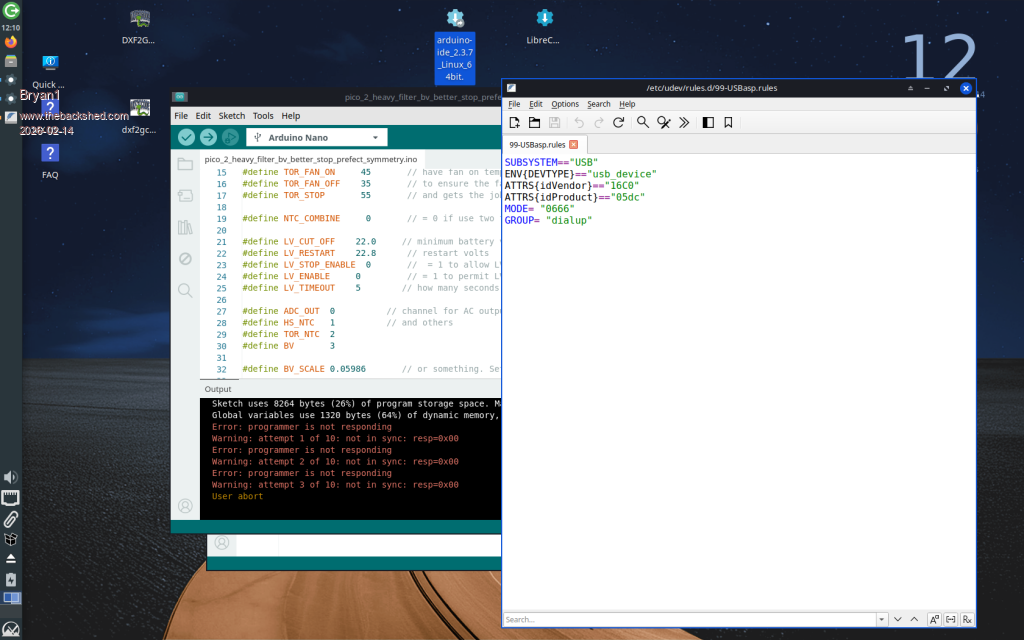
If not, make a new file called "99-USBasp.rules", or if the file exists then edit it, and, in either case, for Linux MX-25, add the following line:
Bryan1 Guru Joined: 22/02/2006 Location: AustraliaPosts: 2264
Posted: 01:46am 14 Feb 2026
Copy link to clipboard
Print this post
Ok made up that 99-USBasp.rules file and added in all those rules which were the same as the ones I got off the google AI when I researched the USBasp on linux.
Thats after I did a reboot too so more fun to be had.....
KeepIS Guru Joined: 13/10/2014 Location: AustraliaPosts: 2265
Posted: 02:14am 14 Feb 2026
Copy link to clipboard
Print this post
Can you copy this exactly in one line and insert it in the file:
Bryan1 Guru Joined: 22/02/2006 Location: AustraliaPosts: 2264
Posted: 03:47am 14 Feb 2026
Copy link to clipboard
Print this post
$ sudo dmesg | tail -f | grep USB [sudo] password for Bryan: [ 1739.455387] usb 2-12: USB disconnect, device number 5 Bryan@Bryan:~ $ sudo dmesg | tail -f | grep USB [ 1739.455387] usb 2-12: USB disconnect, device number 5 [ 1783.838036] usb 2-12: new low-speed USB device number 6 using xhci_hcd [ 1783.980388] usb 2-12: New USB device found, idVendor=16c0, idProduct=05dc, bcdDevice= 1.02 [ 1783.980405] usb 2-12: New USB device strings: Mfr=1, Product=2, SerialNumber=0 [ 1783.980411] usb 2-12: Product: USBasp
KeepIS Guru Joined: 13/10/2014 Location: AustraliaPosts: 2265
Posted: 04:45am 14 Feb 2026
Copy link to clipboard
Print this post
OK you are good to go:
Download the file below and unzip in you home/username directory.
There are 3 files.
1: avrdude
Right click and select properties then permissions, tick allow file to run as a program.
2: avrdude.conf Nothing to do here.
3: Read_Lock.sh
Is a simple script to test avrdude and the Programmer, does NOT need a Nano to be plugged in.
Open Read_Lock.sh with a text editor and edit the "avrpath" at the top of the file to point to the directory where you placed the 3 unzipped files.
Click the Read_Lock.sh file, it may run or ask if you want to A: open it B: Execute or C: Run in terminal.
So a couple of questions first how do I convert the ino file to hex and second the best place for the hex file so the avrdude can find it.
Bryan1 Guru Joined: 22/02/2006 Location: AustraliaPosts: 2264
Posted: 05:19am 14 Feb 2026
Copy link to clipboard
Print this post
Well it must to me trying to adjust to my old life where all this was common anyway found the way to make the hex file so got that done then
$ avrdude -c USBasp -p ATmega328P : -U flash : w inverter.hex avrdude OS error: file flash is not readable: No such file or directory
avrdude done. Thank you.
Now looking thru my new glass's and my loupe I can make out the nano is a mega 328p and the first time I ran avrdude it came back with a error saying no target was found look at these in the man. So ATmega328P was listed so thats what I used and the hex file is located at home/Bryan/documents
KeepIS Guru Joined: 13/10/2014 Location: AustraliaPosts: 2265
Posted: 05:49am 14 Feb 2026
Copy link to clipboard
Print this post
There is no need to read that, I'll make you a ready to run script.
To find where the Arduino IDE places the files.
Open the IDE:
You should have set a Sketch folder in Preferences. In that folder you would have separate folders for each sketch.
In the IDE top bar:
Under Sketches heading, select "Export compiled Binary"
The Output files are placed in the main Sketch folder under the individual sketch folder name/build/arduino.avr.nano/
The IDE will make the sub folders automatically for you under the sub Sketch folder.
There you will find files with ino.eep, ino.elf ino.hex, ino.bin, and your processed code file.
EDIT: the avrdude installed with the IDE will screw you around. you need to test the one I gave you with the test script.

 Notice. New forum software under development. It's going to miss a few functions and look a bit ugly for a while, but I'm working on it full time now as the old forum was too unstable. Couple days, all good. If you notice any issues, please contact me.


 Print this post