
| Menu | JAQForum Ver 19.10.27 |
| Menu | JAQForum Ver 19.10.27 |
Forum Index : Microcontroller and PC projects : Also coming soon - what am I missing?
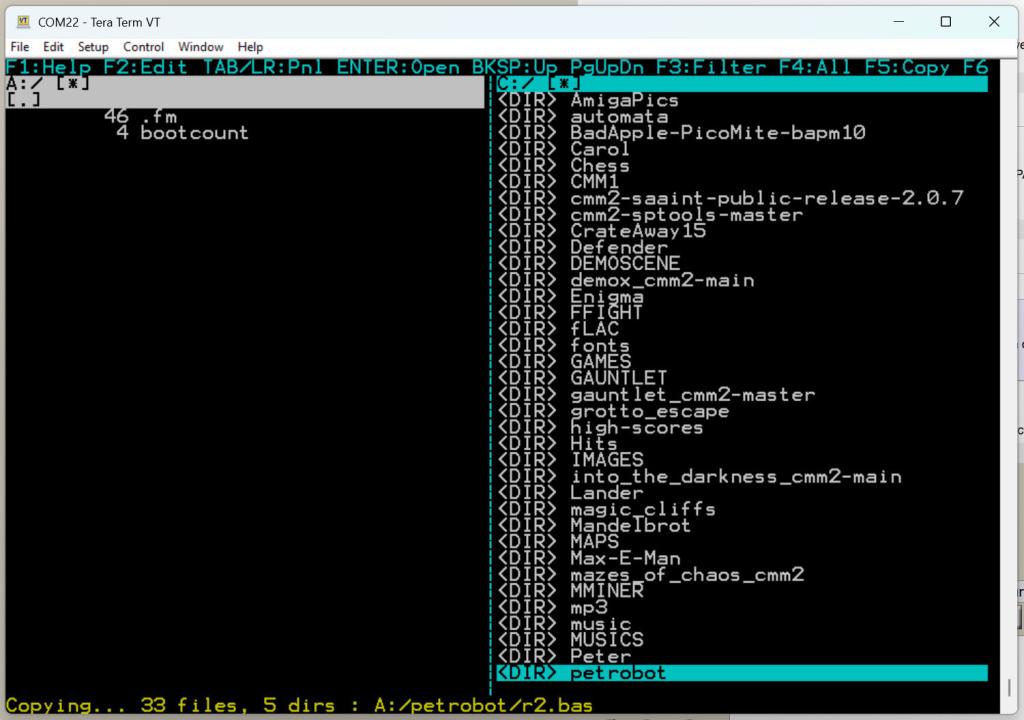 # FM Command User Manual ## Overview The `FM` command opens a full-screen, two-panel file manager for the active storage devices. It is designed for keyboard-driven workflow on serial terminals, VGA, HDMI, and LCD console modes: - Browse directories in two panels. - Launch `.BAS` programs directly. - Open files in the built-in editor. - Copy, rename, delete, and create directories. - Play audio files and preview image files. - Keep context between invocations (paths, panel selection, and filters). ## Command ```basic FM ``` `FM` takes no arguments. ## Panels And Navigation Each panel has: - Current drive and path. - Optional filename filter. - Scrollable file list. - Current selection highlight. The active panel is where file operations are applied. ## Keyboard Shortcuts FM supports both function keys and Ctrl-key alternatives so it remains usable on keyboards without full function key or paging clusters. | Action | Primary Keys | Alternative Keys | |---|---|---| | Exit FM | `ESC` | - | | Switch panel | `TAB`, `LEFT`, `RIGHT` | `Ctrl-S` (left), `Ctrl-D` (right) | | Move selection up/down | `UP`, `DOWN` | `Ctrl-E`, `Ctrl-X` | | Page up/page down | `PgUp`, `PgDn` | `Ctrl-P`, `Ctrl-L` | | Go to panel root/end | `HOME`, `END` | `Ctrl-U`, `Ctrl-K` | | Go to parent directory | `Backspace` | - | | Open selected item | `Enter` | - | | Help | `F1` | `Ctrl-Q` | | Edit selected file | `F2` | `Ctrl-W` | | Set filter | `F3` | `Ctrl-R` | | Clear filter | `F4` | `Ctrl-T` | | Copy selected item | `F5` | `Ctrl-Y` | | Stop audio | `F6` | `Ctrl-O` | | Volume down/up | `F7`, `F8` | `-`, `+` (or `=` for up) | | Rename selected item | `F9` | `Ctrl-N` | | Delete selected item | `DEL` | `Ctrl-]` | | Make directory | `F10` | `Ctrl-B` | | Select drive | `A`, `B`, `C` | - | | Go to path | `G` | - | | New file (create and edit) | `N` | - | | Duplicate selected item | `D` | - | | Move selected item to other panel | `M` | - | | Recursive delete selected item | `X` | - | ## Open Behavior Press `Enter` on the selected item: - Directory: enters the directory. - `.BAS` file: launches the program. - Audio file: starts playback. - Image file (`.BMP`, `.JPG`, `.PNG`): displays image preview. ## Editor Integration `F2` or `Ctrl-W` opens the selected file in the editor. When FM launches a BASIC program and that program throws an error, FM keeps context so returning to FM and opening the same file can position the editor at the reported error location. ## File Operations - Copy is recursive for directories. - Delete removes files or empty directories. - Rename applies to the selected item. - New directory is created in the active panel path. - `D` duplicates the selected file or directory in the current panel. - `M` moves the selected item to the other panel destination. - `G` prompts for an absolute or relative path and jumps there. - `N` creates an empty file and opens it in the editor. - `X` performs recursive delete for directories (and delete for files) using two separate confirmation prompts. Cross-drive move for directories is not currently supported. Status messages are shown on the bottom line for operation results and errors. ## Notes For Manual Integration This section is intended for inclusion in the main PicoMite User Manual under command reference (for example, near `FILES`, `CHDIR`, and editor-related commands). Edited 2026-04-14 19:55 by matherp |
||||||
Hi Peter, Not sure what is missing. Seems quite complete. The recursive delete is nice. You could not choose, so made your own ? thwill filemanager geoff menu/filemanager dddns mini filemanager twofingers filemanager javavi filemanager Volhout |
||||||
It would be great if a file manager were integrated!  With an RP2350, a few kilobytes here or there aren't a problem...  What's giving me a bit of a headache is the short command name. I'm afraid that could easily lead to conflicts with variables in existing programs.  Functionally, it reminds me of the NC clone "Midnight Commander" — how about "MMCommander" as command?  Regards, bfwolf |
||||||
Unclear from the documentation, is it possible to select/cut/copy/paste/delete multiple items at once? Also, can file sizes be seen? Edited 2026-04-15 01:55 by vegipete |
||||||
@bfwolf I believe, from what Peter has said above, that it will be included in the standard Firmware install, probably on the 2350, but who knows :-) I would imagine that this can not be invoked from a program, so there will be no clash with program variable names, but we'll find out soon. :-) FM as a command to run a File Manager is fine by me, easy and quick to type. :-) The feature set looks good :-) I like the fact that if you use FM to run a program, and it crashes, FM remembers and if you use it to edit the failed code, the error line is remembered. I'll wait for a release to see how it all actually works out. Kevin. Edited 2026-04-15 01:59 by Bleep |
||||||
Attached is the HDMIUSB code if anyone wants to try it. Check the updated spec - lots more goodies now included. The key point about this is that is should be possible to work entirely within fm. There should be no reason ever to have to go the command prompt other than things like changing options. PicoMite.zip RP2350 PicoMite version (ashould work on PicoCalc) PicoMite.zip # FM Command User Manual ## Overview The `FM` command opens a full-screen, two-panel file manager for the active storage devices. It is designed for keyboard-driven workflow on serial terminals, VGA, HDMI, and LCD console modes: - Browse directories in two panels. - Sort each panel by name, datetime, or type then name. - Launch `.BAS` programs directly. - Open files in the built-in editor. - Copy, rename, delete, and create directories. - Mark multiple items and run batch copy/delete operations. - Play audio files and preview image files. - Keep context between invocations (paths, panel selection, filters, and sort mode). ## Command ```basic FM ``` `FM` takes no arguments. ## Panels And Navigation Each panel has: - Current drive and path. - Optional filename filter. - Scrollable file list. - Current selection highlight. List rows use a leading marker column: - `*` means the item is marked. - ` ` (space) means unmarked. The active panel is where file operations are applied. ## Keyboard Shortcuts FM supports both function keys and Ctrl-key alternatives so it remains usable on keyboards without full function key or paging clusters. | Action | Primary Keys | Alternative Keys | |---|---|---| | Exit FM | `ESC` | - | | Switch panel | `TAB`, `LEFT`, `RIGHT` | `Ctrl-S` (left), `Ctrl-D` (right) | | Move selection up/down | `UP`, `DOWN` | `Ctrl-E`, `Ctrl-X` | | Page up/page down | `PgUp`, `PgDn` | `Ctrl-P`, `Ctrl-L` | | Go to panel root/end | `HOME`, `END` | `Ctrl-U`, `Ctrl-K` | | Go to parent directory | `Backspace` | - | | Open selected item | `Enter` | - | | Cycle sort mode | `S` | - | | Help | `F1` | `Ctrl-Q` | | Edit selected file | `F2` | `Ctrl-W` | | Set filter | `F3` | `Ctrl-R` | | Clear filter | `F4` | `Ctrl-T` | | Copy selected/marked item(s) | `F5` | `Ctrl-Y` | | Stop audio | `F6` | `Ctrl-O` | | Volume down/up | `F7`, `F8` | `-`, `+` (or `=` for up) | | Rename selected item | `F9` | `Ctrl-N` | | Delete selected/marked item(s) | `DEL` | `Ctrl-]` | | Make directory | `F10` | `Ctrl-B` | | Select drive | `A`, `B`, `C` | - | | Go to path | `G` | - | | New file (create and edit) | `N` | - | | Duplicate selected item | `D` | - | | Move selected item to other panel | `M` | - | | Recursive delete selected/marked item(s) | `X` | - | | Mark/unmark current item | `Space` | - | | Mark all items in panel | `*` | - | | Clear all marks in panel | `\` | - | | Type-to-select by filename | `/` then type prefix | `Enter` open selected, `Esc` cancel, `Backspace` edit | ## Sorting Press `S` to cycle sort mode for the active panel: - Name - Datetime (newest first) - Type then name Sort mode is saved in FM context and restored on next launch. ## Type-Select Press `/` to enter type-select mode. - Entering type-select forces the active panel to **name sort** first. - Type characters to build a filename prefix match (case-insensitive). - Matching is debounced briefly while typing to reduce redraw churn. - `Backspace` edits the prefix. - `Enter` exits type-select mode and opens the currently selected item. - `Esc` cancels type-select mode. ## Open Behavior Press `Enter` on the selected item: - Directory: enters the directory. - `.BAS` file: launches the program. - Audio file: starts playback. - Image file (`.BMP`, `.JPG`, `.PNG`): displays image preview. ## Editor Integration `F2` or `Ctrl-W` opens the selected file in the editor. When FM launches a BASIC program and that program throws an error, FM keeps context so returning to FM and opening the same file can position the editor at the reported error location. ## File Operations - Copy is recursive for directories. - Delete removes files or empty directories. - Rename applies to the selected item. - New directory is created in the active panel path. - `D` duplicates the selected file or directory in the current panel. - `M` moves the selected item to the other panel destination. - `G` prompts for an absolute or relative path and jumps there. - `N` creates an empty file and opens it in the editor. - `X` performs recursive delete for directories (and delete for files) using two separate confirmation prompts. - `/` starts type-select mode so letters can be used as a filename prefix without triggering command keys. Multi-select behavior: - If one or more items are marked, `F5`/`Ctrl-Y` copies all marked items. - If one or more items are marked, `DEL`/`Ctrl-]` deletes all marked items (single confirmation). - If one or more items are marked, `X` recursively deletes all marked items (double confirmation). - If no items are marked, operations apply to the currently selected item. Cross-drive directory copy is supported. Direct cross-drive directory move with `M` is not supported; use copy then delete. Status messages are shown on the bottom line for operation results and errors. ## Notes For Manual Integration This section is intended for inclusion in the main PicoMite User Manual under command reference (for example, near `FILES`, `CHDIR`, and editor-related commands). Edited 2026-04-15 03:59 by matherp |
||||||
Wow.....! I really shouldn't start playing with MMBasic at the moment. I have a drone in bits and a second aquarium light to get sorted out! |
||||||
Hi Peter, Should up/down arrow auto repeat when single line scrolling up/down through list of files, I realise maybe not once you get to top/bottom of screen because of the slow refresh, but when scrolling through a list that is wholey on screen would be nice, I'm using a USB keyboard. If I load a program with F2, then make some trivial change and run it with F2 the Pico locks up, needs a reset. Otherwise looking very nice, works in all the resolutions I've tried, haven't tried most of the features yet. Kevin. Footnote added 2026-04-15 05:54 by Bleep F1 to save a change also crashes. :-( |
||||||
@Peter: I'm not sure if you implemented the File Manager as an "internal command" or as an "internal BASIC library"? But @Kevin gave me a crazy idea: If "FM" is an internal command, couldn't it also be turned into a "standard file requester" that could be used from within programs? So, if the File Manager is also a function called "FM$()" (or whatever name it ends up having), we could pass it a "selector" as an argument to determine whether file manager or file requester functionality is required. If file requester functionality is desired, we could add an additional argument, namely a `ByRef filename$`, which would return the selected file. And the return value could be "OK" or "CANCEL" if it's a string, and, for example, 0 or -1 if FM() had an integer return value. What do you think? A Requester would essentially just be a "reduced file manager": only 1 panel and only 2 buttons. Regards, bfwolf. |
||||||
I’d love to see a HEX editor added to the File Manager. That would really round things off nicely. Would it make sense to implement XTERM send and receive in the File Manager as well? Just some ideas :-) |
||||||
I have tried FM, a little. When I go into F2 edit, and leave edit, something strange happens. I will test further but that is what I have discovered so far. using PicoMite RP2350A, I hope I am using the right file (using file 2026-04-15_035310_PicoMite.zip) /Peter63 Edited 2026-04-15 11:00 by Peter63 |
||||||
Thanks Peter, It may be there, or may not be necessary, but can there be an alternative option (within FM) to Launch from RAM?...just to be fanatical with minimising flash writes. For example right now I use something like RAM FILE LOAD 2,"C:/MM/Test1.BAS",O RAM RUN 2 Or maybe more generally useful, to have user-defined function keys(could seed in the directory/file substitution parameters), the commands (re)configured for everyone's different workflow F11="RAM FILE LOAD 2,%d%/%f%" F12="RAM RUN 2" Just ideas thrown out there! Really loving the USB Comms & USB flash drives. Brilliant. Thanks again, Phil Edited 2026-04-15 13:34 by flip |
||||||
 |
The Back Shed's forum code is written, and hosted, in Australia. |


